Conversation Playbook 💡 How to Create A Segment

|
September 2023
Conversica Tip 04: Create A Segment in Conversation Rules
|
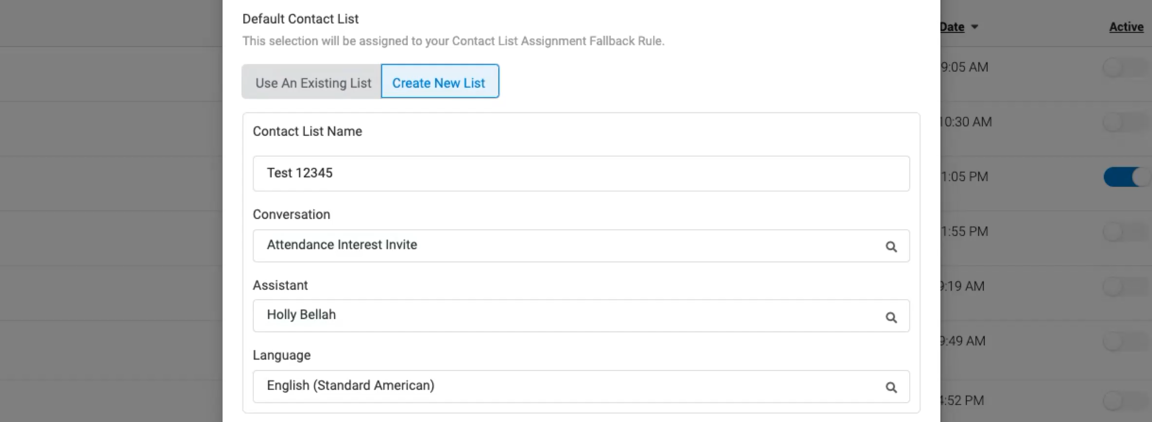
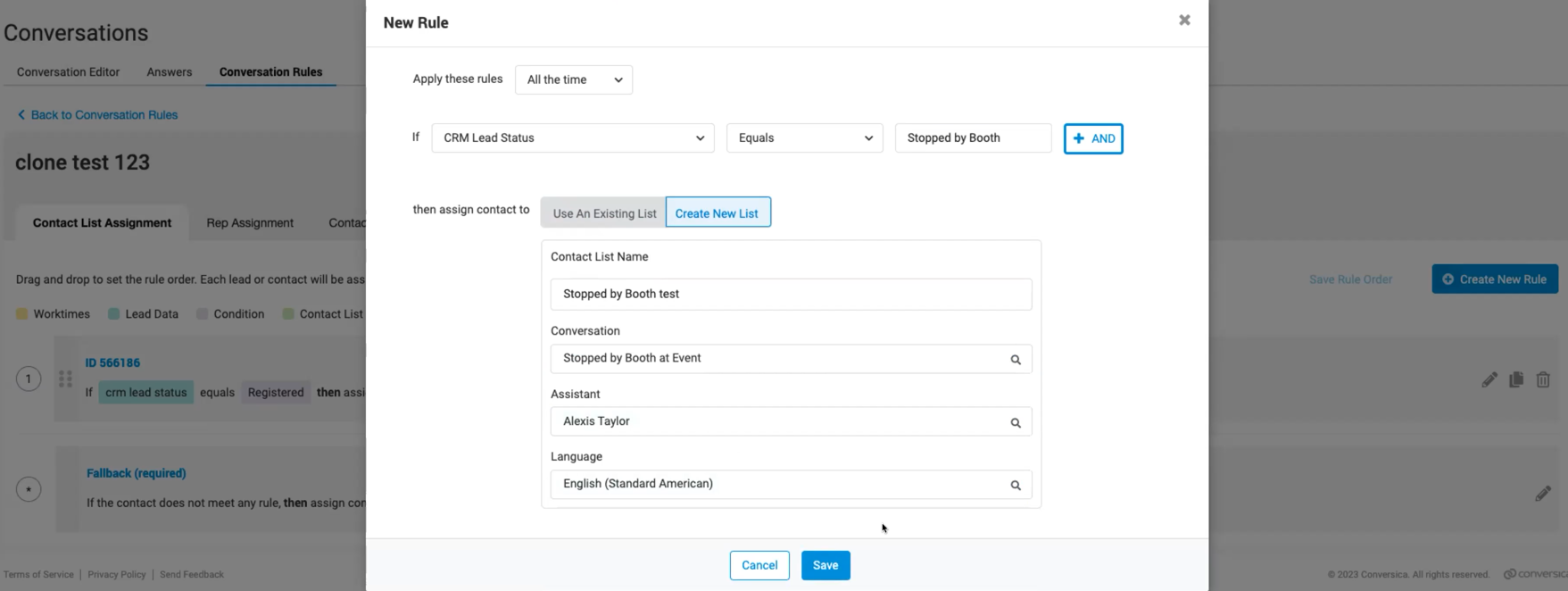
2. Go into Rules Manager, Contact List Assignment tab to Create New Rule:
Input how you want these contacts to be segmented by selecting the data field and operator, then type in the value.
Example: Select “Stopped by Booth at Event” for your conversation and the most appropriate assistant for event correspondence. Now the Rule knows to send this conversation from this RDA to people from your registration list that stopped by your booth.
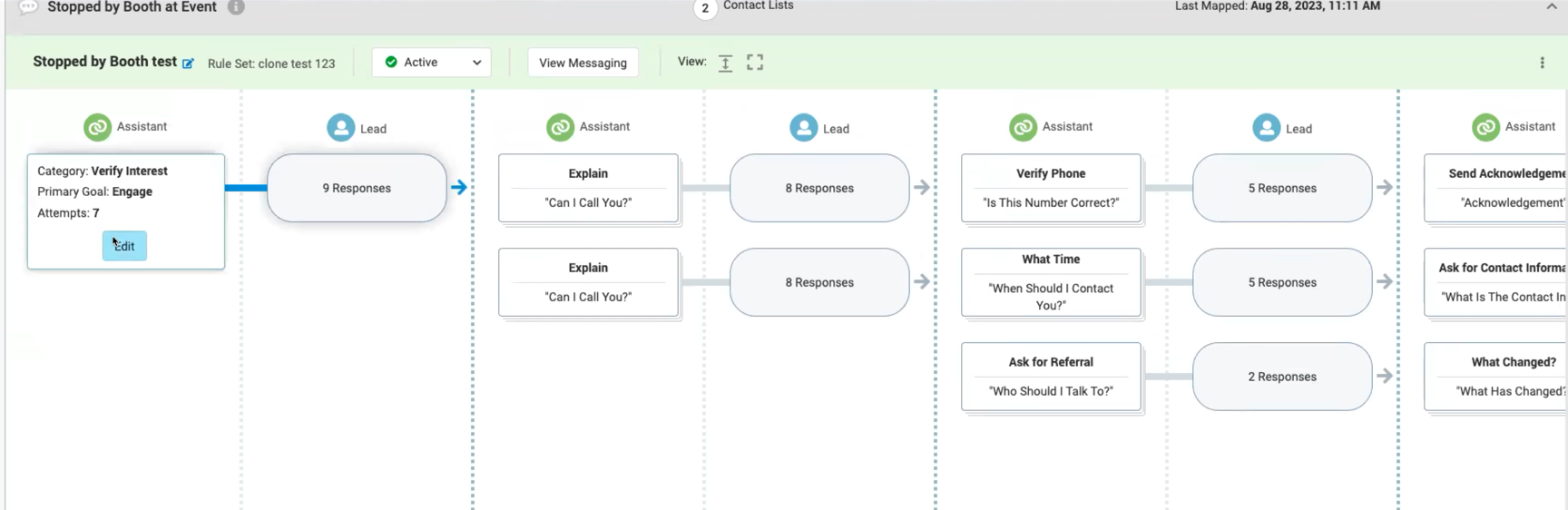
4. Go to Conversation Editor and search for the contact list from Step 3:
Example: Go into the “Stopped by Booth” conversation and edit the “Engage” Assistant outreach to thank the recipient for talking with your team at your booth.
5. Activate your Conversation and Rule Set:
Additional Resources
Step-by-step guide to Conversation Rules
How to create Rule Sets and each type of Rule, how to edit and clone, how to map a contact list, and more.
Create Conversation Rules →
Common use cases for segmentation
Dive right into the why, how, and when to segment in Conversica. Complete with flow charts :)Figure out when to segment →
Watch an introduction to Conversation Rules
This video highlights how to automate the process of segmenting and routing leads with Conversation Rules.See it in action →
Contact your CSM, AE, or Support
Your Conversica team is happy to help you get set up with Conversation Rules and answer questions.
Please sign in to leave a comment.
Comments
0 comments