Conversation Playbook 💡 Add Scheduling Link

October 2023
Conversica Tip 05: Add Custom Scheduling Link
Let your RDA schedule meetings with a lead’s designated rep
If the conversations you use include a “Scheduling Link” dynamic field – be sure to use it! This recently released feature enables you to add personalized scheduling links to your users’ settings to help leads book meetings with your salesperson’s personal work calendar.
These personalized scheduling links are unique to each of your salespeople and connect to their scheduling tool (Chili Piper, Calendly, etc.) that is synced with their work calendar. The Revenue Digital Assistant sends the assigned representative’s custom scheduling link to a lead (instead of a default scheduling link).
Here’s another great perk when you include a link in your conversations: It allows Conversica to track click-rates as opposed to only open-rates! This is a key engagement metric to see how your campaigns resonate with your leads.
How users can add custom scheduling URLs to their User Settings
First, let’s double-check you have the prerequisites to activate this feature:
- An active Conversation that uses the “Scheduling Link” dynamic field
- One or more applicable users (aka representatives) have a personal scheduling URL saved on their User Settings page
- All “Scheduling Link” dynamic field values are provided in the Conversation Editor for the applicable Conversations
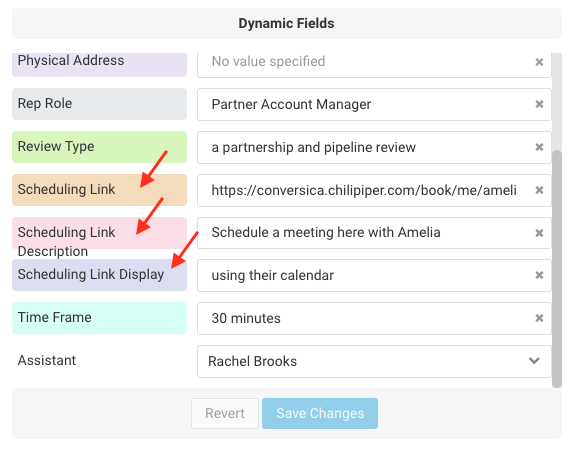
** Note the "Scheduling Link" value should be the default URL you want whenever the assigned user to the lead does not have a custom URL.
All set? Good! Now let’s help each user add and save their own scheduling URL on their User Settings page:
- From the Conversica dashboard, navigate to: Settings > Users, Profiles & Teams.
- On this page, locate and select the desired user. Hover over their name and click on "Edit."
- Within this Edit User modal, the Custom Scheduling Link option is available near the bottom, just below the heading of "Miscellaneous Settings."
- To add a custom URL, click on the "Yes" radio button. This will present a text field for the URL to add the user's custom URL for scheduling, and click "Save" when done.
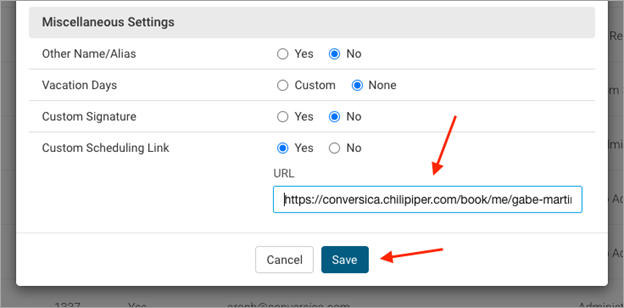
Now moving forward, any new leads assigned to this user on an enabled conversation will receive the user's custom URL from the RDA whenever appropriate.
Additional Resources
|
Step-by-step guide to creating custom scheduling links Follow this process to enable Scheduling Links and get your team their personalized scheduling links – even if you don’t use Google Calendar or Outlook. |
|
|
Video conference capabilities with Scheduling Link These days, meetings are usually on video conferencing platforms – let’s help you integrate yours with the custom scheduling link. |
|
|
“Using the Conversation Editor” on Conversica Academy This course teaches you how to use the Conversation Editor and its Scheduling Link feature. |
|
|
Contact your CSM, AE, or Support Your Conversica team is happy to help you set up custom scheduling links and answer questions. |
Please sign in to leave a comment.
Comments
0 comments